Before You Start (Important)
Before troubleshooting, please make sure the following points are checked first:
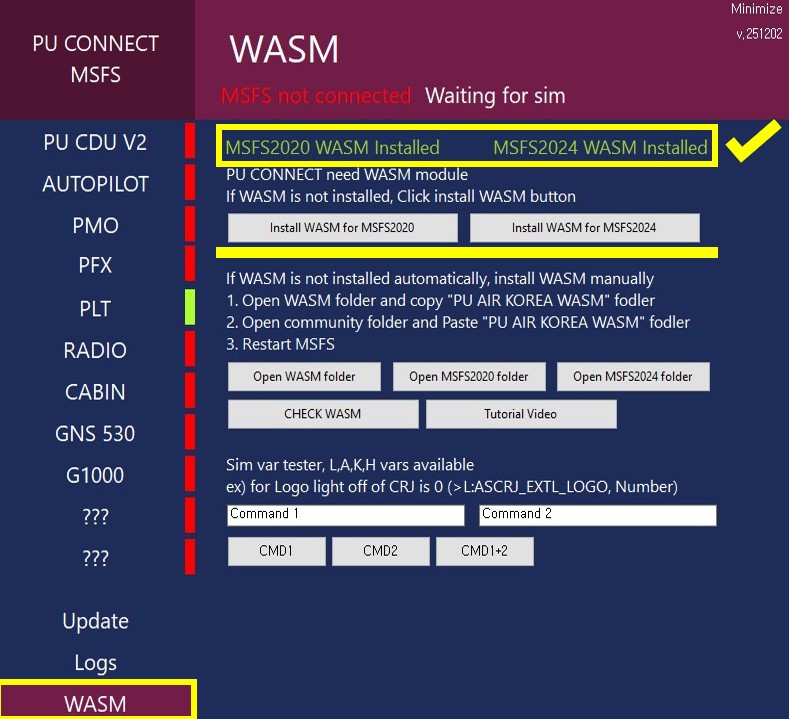
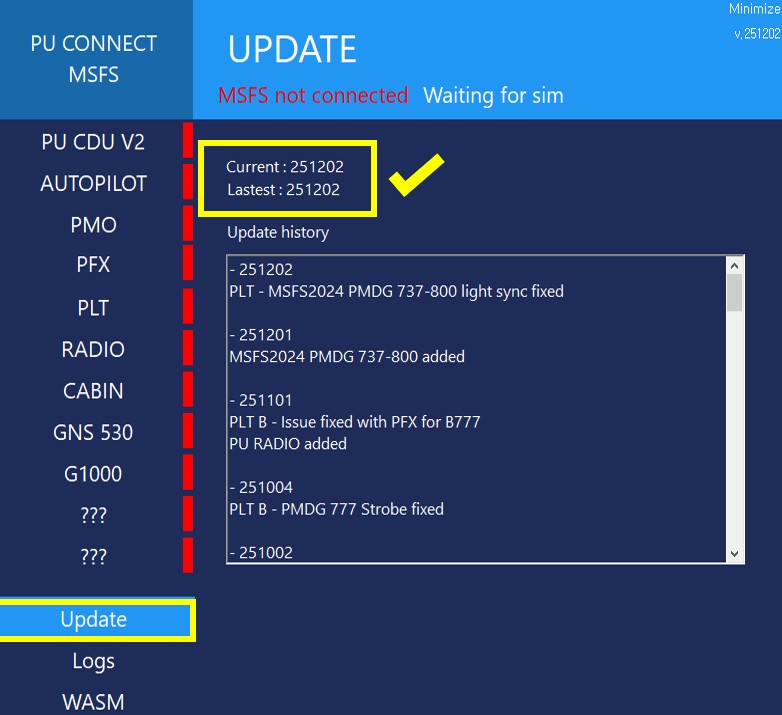
1. Make sure PU CONNECT is updated to the latest version.
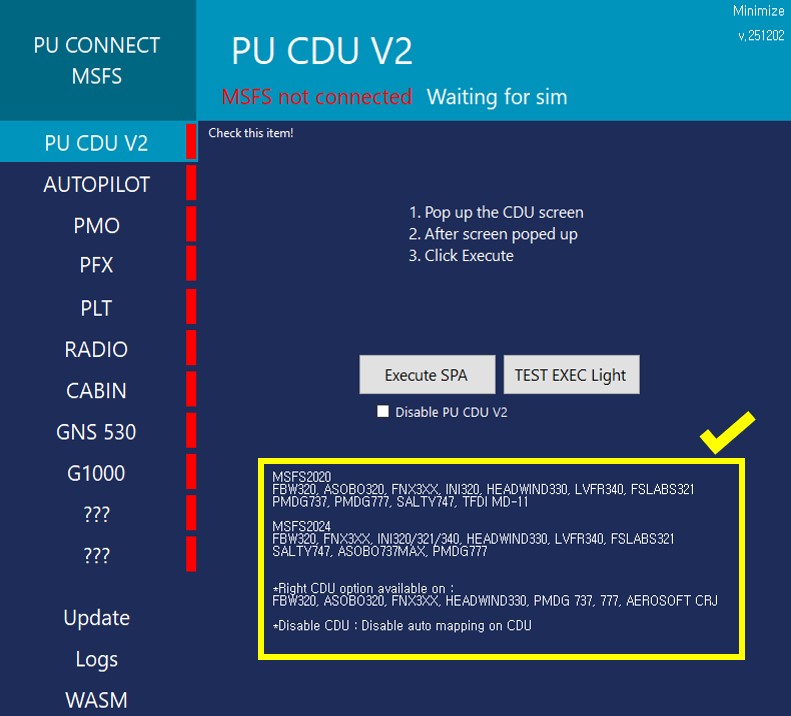
2. Confirm that you have loaded a supported aircraft in your simulator.
3. Check that all cables are properly connected
(screen-equipped products require an HDMI connection).
4. If the device does not work initially, restart your PC and try again.
5. Load another supported aircraft and check whether the same issue occurs.
Power Does Not Turn On
If the device does not power on at all:
1. Try using a different USB cable.
2. Connect the device to a different USB port on your computer.
3. If you are using a USB hub, connect the device directly to the motherboard USB port.
4. Test the device on another PC or laptop to determine whether the issue is with the hardware or the computer.
Device Powers On but PU CONNECT Does Not Connect
If the device turns on but PU CONNECT does not detect it:
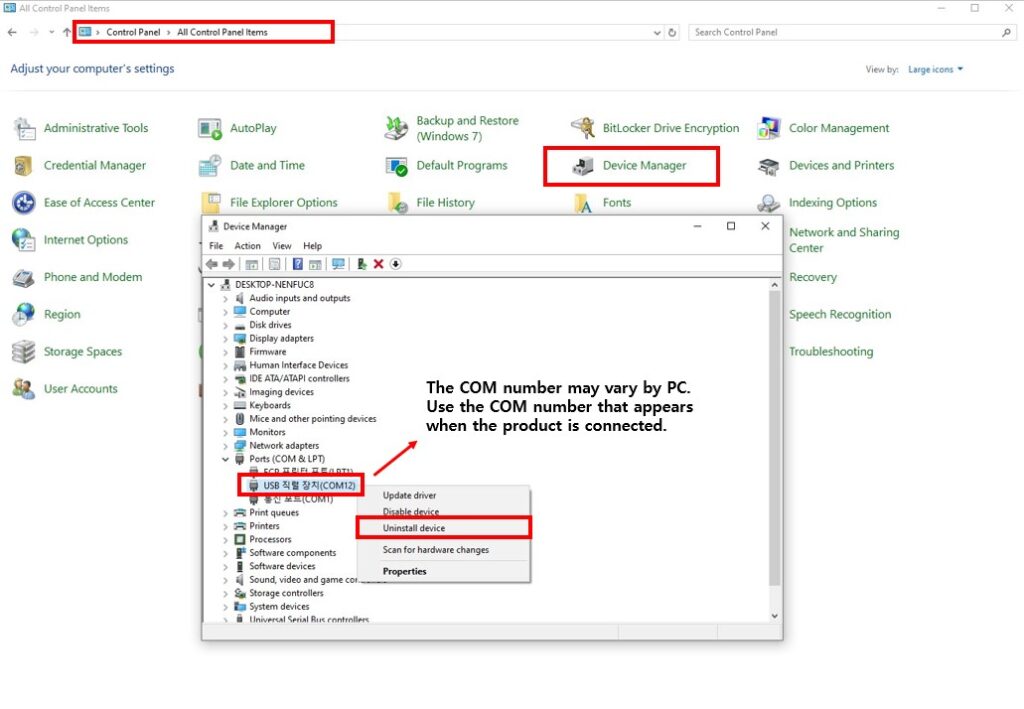
1. Completely uninstall PU CONNECT and reinstall it.
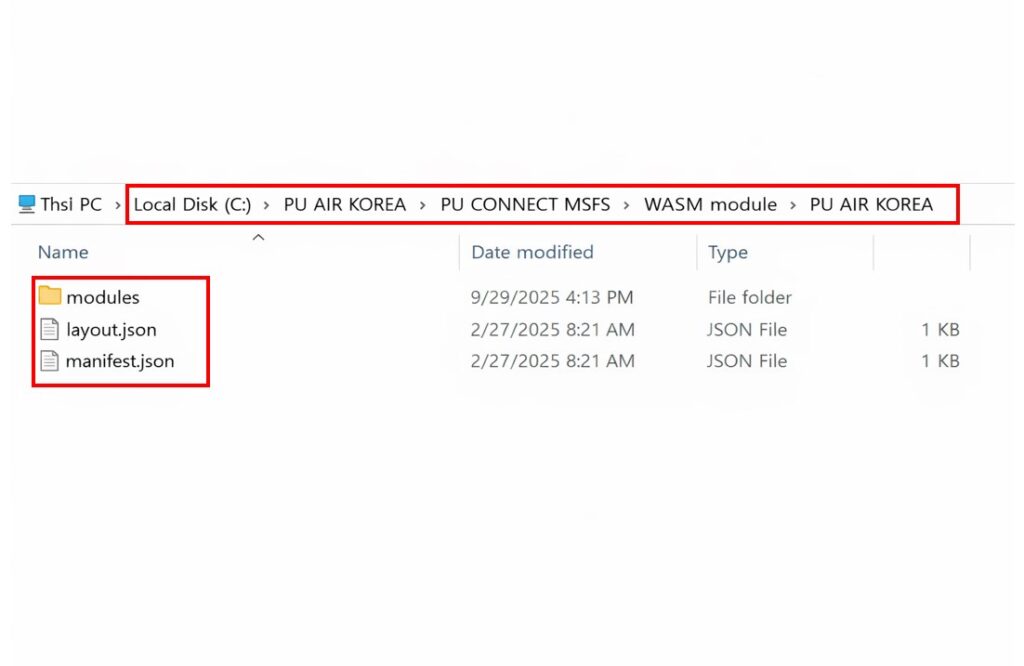
Make sure the PU AIR KOREA WASM folder is also fully removed.
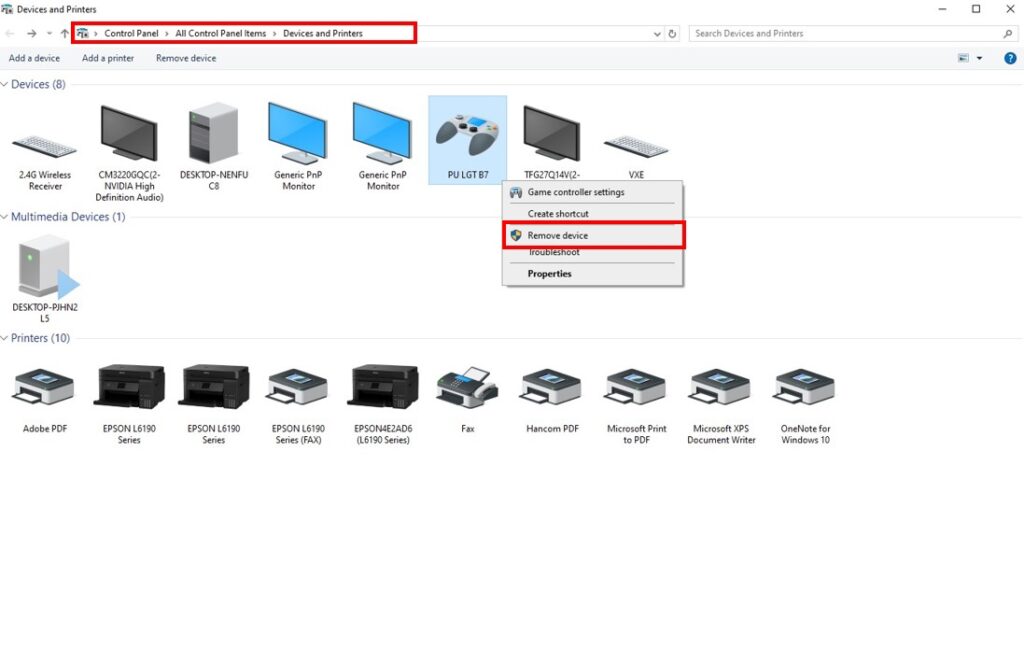
2. Go to Windows → Devices and Printers
→ Right-click the device → Remove device
→ Unplug the device → Reconnect it → Test again.
3. Temporarily disable antivirus software or Windows Defender and test again.
Buttons or Knobs Do Not Work
If buttons or knobs do not respond:
1. Check that the device shows a green (connected) status in PU CONNECT.
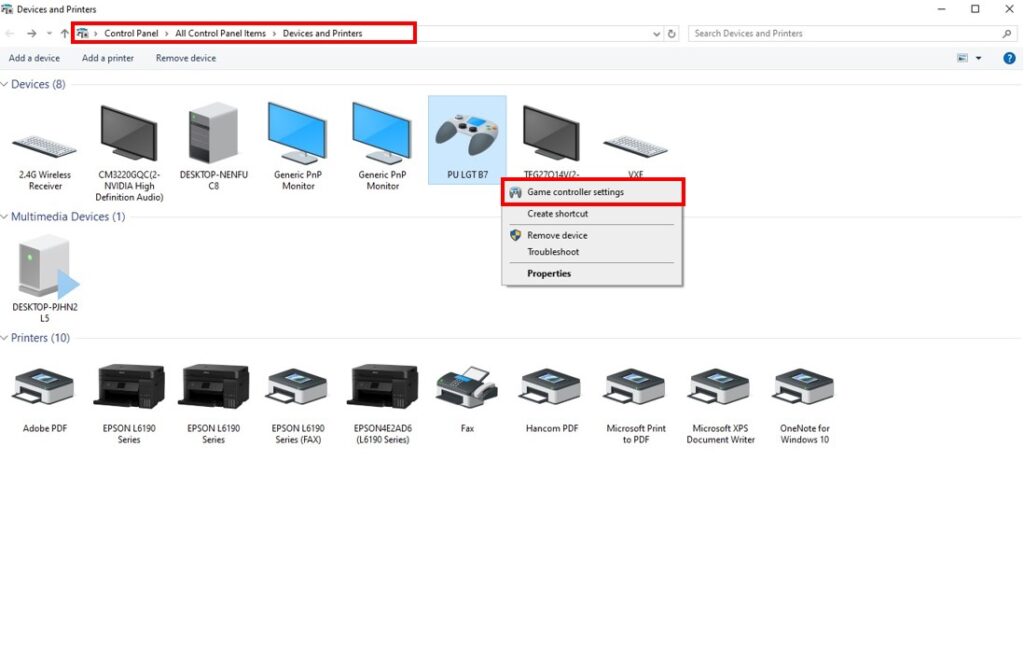
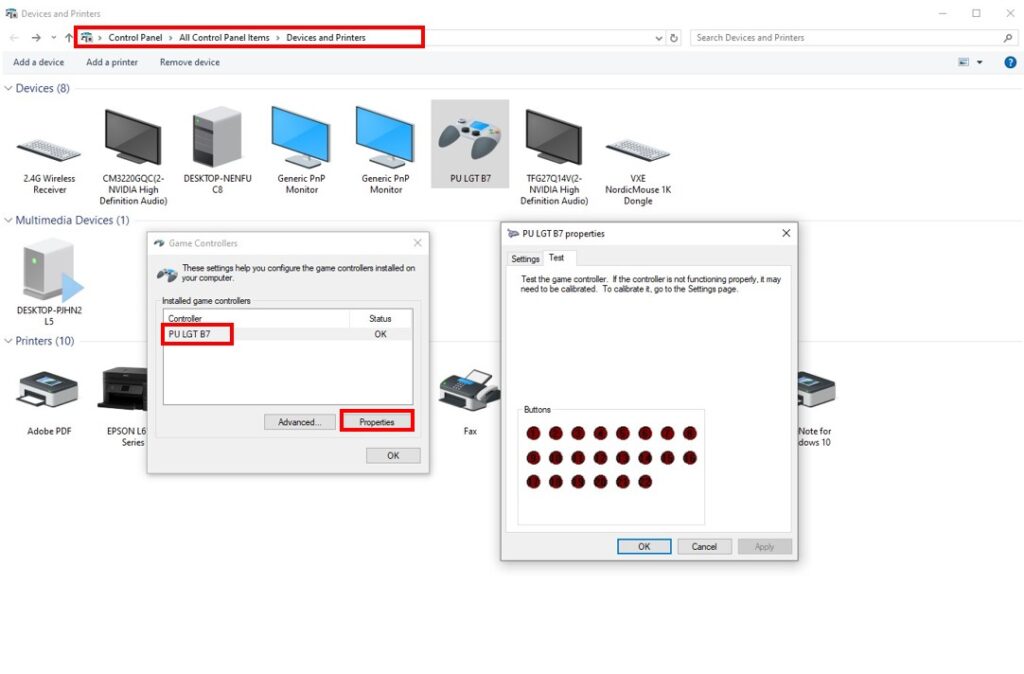
2. Go to Windows → Devices and Printers → Game Controller Settings → Properties
and confirm that physical button inputs are detected.
3. Try a different USB cable and USB port.
4. Close any third-party programs (AAO, Lorby, SPAD, etc.) to avoid key-binding conflicts.
5. Run PU CONNECT as Administrator.
6. Remove the device from Devices and Printers, unplug it, reconnect it, and test again.
In-Game Screen Popup Does Not Work (SPA Feature)
For Microsoft Flight Simulator (MSFS):
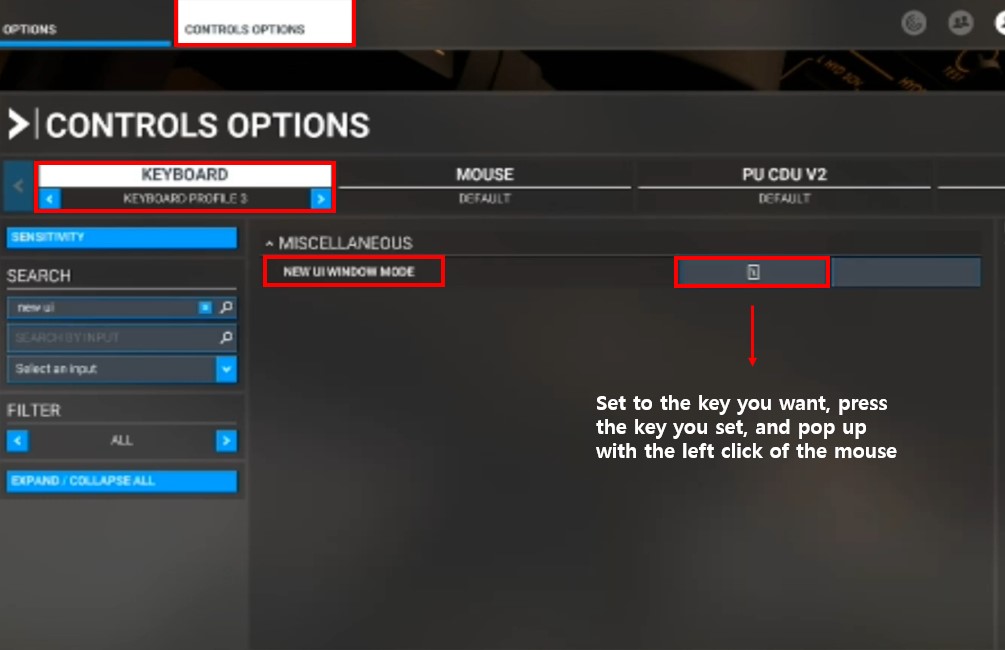
1. Make sure a key is assigned to “New UI Window Mode” in MSFS settings.
2. Press the assigned key + Left Click on the in-game CDU screen.
3. Click SPA in PU CONNECT.
For X-Plane:
1. WEBFMC PRO is required for screen pop-out functionality.
2. Please install and purchase WEBFMC PRO.
3. Make sure the CDU screen is set to Extend mode in Windows.
Screen Does Not Display (Screen-Equipped Products)
If the screen does not turn on or display properly:
1. Try using a different HDMI cable.
2. Connect the HDMI cable directly to the graphics card output.
3. Try an HDMI-to-DisplayPort adapter cable.
4. Open Windows Display Settings and make sure the display mode is set to Extend, not Duplicate.
5. Run PU CONNECT as Administrator.
SIMCONNECT Connection Issue (MSFS 2020 / MSFS 2024) :
If the product is not detected in PU CONNECT or MSFS is not recognized
1. Download the provided SIMCONNECT file from the link below
2. Navigate to your existing MSFS installation folder and locate the current SIMCONNECT file
3. Before replacing the file, please make a backup of the original SIMCONNECT file in case you need to restore it later
4. Copy the downloaded SIMCONNECT file and overwrite the existing file in the MSFS folder
5. Restart PU CONNECT and MSFS, then check if the connection is properly established.